
HomeDual SIM SMS App
A dual-SIM SMS app for Android
Keep work and personal numbers apart. Pick the SIM that sends your texts, or choose per message.
Last updated:
Yes. If your phone has two active SIMs, you can choose which one sends your messages, or set the app to ask you each time.
Choose your sending SIM
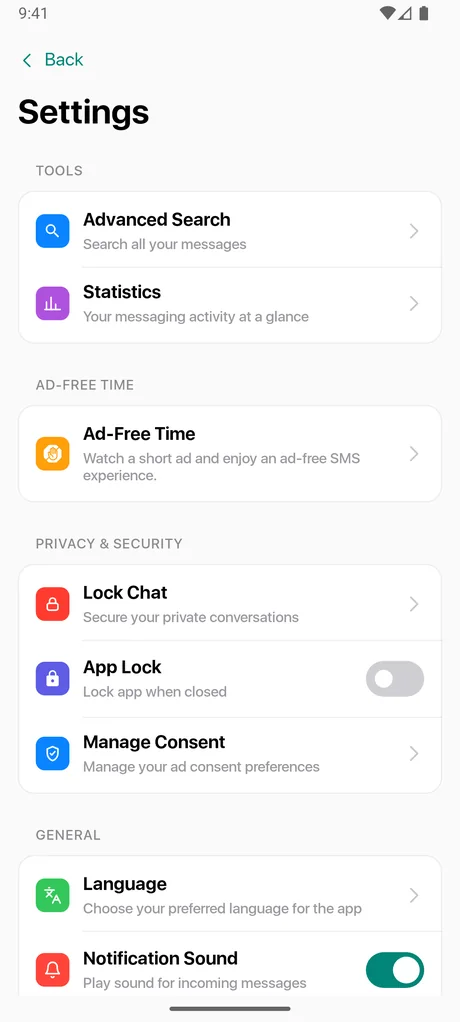
- On the Messages home screen, open Settings.
- Tap SIM for sending messages.
- Choose a SIM, or choose Ask each time.
With Ask each time, the app shows a Send with which SIM? prompt. You can tick Remember my choice if you want it to stop asking.
Good to know
- The app detects your SIMs using the phone-state permission. Without it, it cannot tell the SIMs apart.
- Messages must be your default SMS app.
- Carrier charges apply according to the SIM that sends the message.
- Group MMS and picture messages need MMS support on the SIM you send from.
Who it helps
People with a work and a personal number, travellers who add a local SIM, and anyone with an eSIM plus a physical SIM.
See all features or the setup guide.
Frequently asked questions
Does Messages - SMS Texting support dual SIM?
Yes. If your phone has two active SIMs, you can choose which one sends your messages, or set the app to ask you each time.
Can I switch SIMs for one message?
Yes. Set SIM for sending messages to Ask each time and pick a SIM whenever you send.
Does it work with eSIM?
It works with the SIMs that Android reports as active, including an eSIM alongside a physical SIM on supported phones.
Related
Get Messages - SMS Texting on Android
Free to download. Set it as your default SMS app and take control of your inbox in a minute.